Robotical and Micro:bit

Connect the BBC micro:bit with the Robotical App and bring coding off the screen and into your students hand’s. Students can experiment with inputs, outputs and foundational coding skills using Blocks Jr and Blocks, creating projects with sprites, Cog and Marty the Robot.

Robotical and micro:bit
Micro:bit and Marty the Robot

What is a micro:bit?

A micro:bit is a small, programmable computer that provides a hands-on, engaging way to learn about coding and physical computing. 

With LEDs, buttons, sensors and a speaker, the micro:bit can sense and react to the real world. Connected to the Robotical App, it can be programmed with Blocks or Blocks Jr, allowing even emerging or pre-readers to experience coding through hands-on projects.

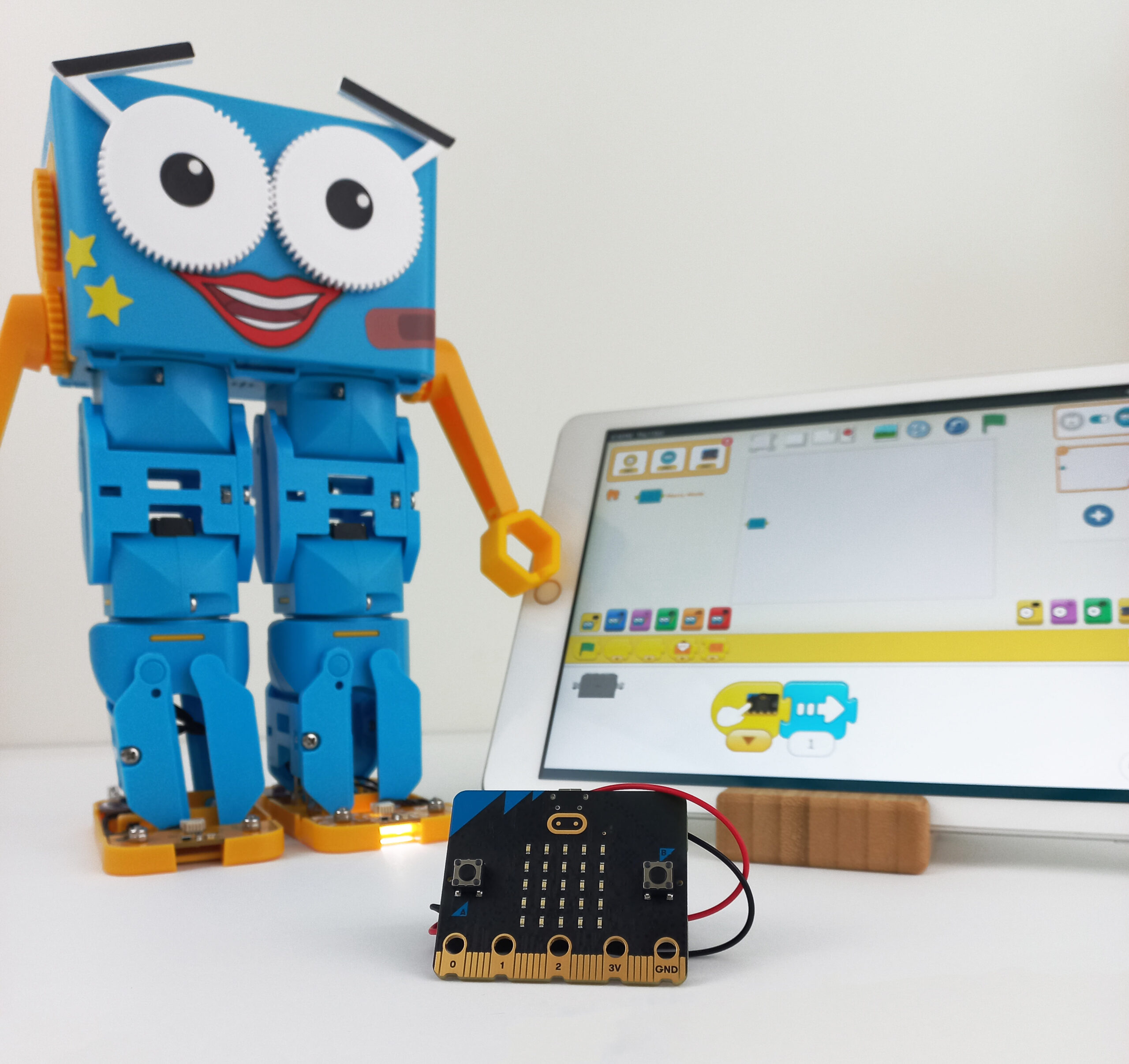
To take the learning even further, the micro:bit can be paired with Marty the Robot or Robotical Cog. Students can write code that makes Marty move and respond, or use Cog’s sensors, lights and speaker to create interactive projects.

Blocks Jr and the micro:bit

Start your students on a life-long STEM journey with hands-on activities.

Blocks Jr introduces younger learners to coding through colourful, icon-based programming blocks and a horizontal layout designed for emerging readers. Based on ScratchJr, it will feel familiar to pupils who have used the programme before.

Children can drag and snap blocks together to control on-screen sprites, developing their understanding of logic, sequencing and cause and effect. Connect a physical device and they can take their projects beyond the screen, seeing their code come to life in the real world.

With the micro:bit, students can explore how physical inputs interact with on-screen sprites, Cog and Marty the Robot, opening up new ways to experiment with coding.

Blocks Jr Logo
micro:bit with Blocks Jr

Example Activity

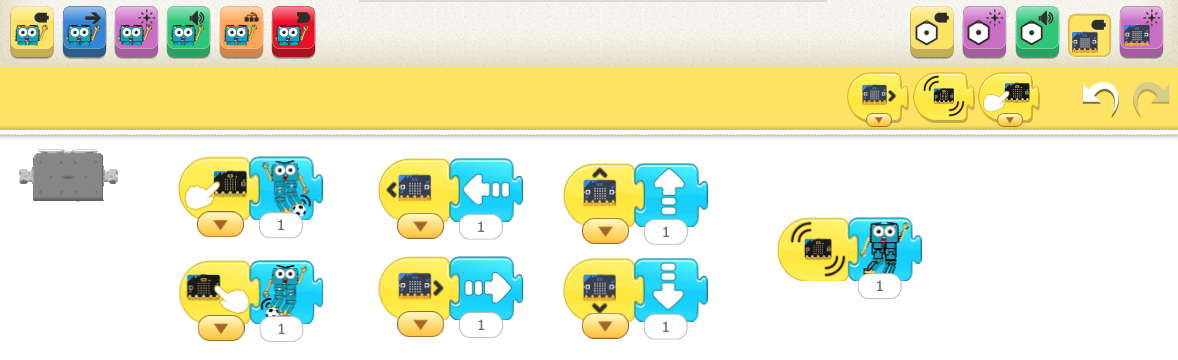
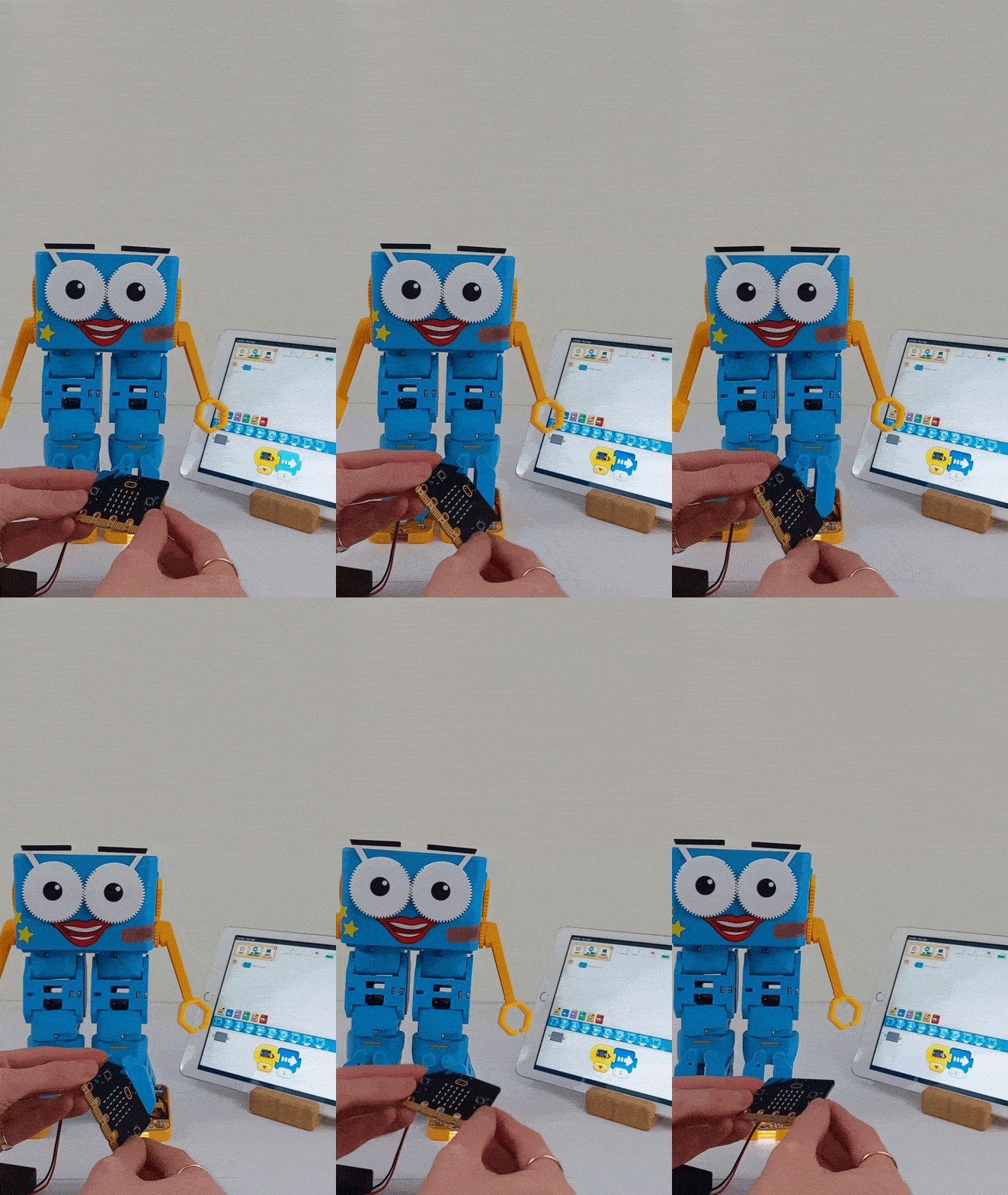
Combine the micro:bit with Marty to create a football-playing robot. Use the micro:bit’s buttons to make Marty kick and its tilt controls to make Marty walk in different directions.

How to set it up:

  1. Find the yellow micro:bit blocks on the right-hand side of the screen.
  2. Drag two “On Button Press” blocks into the coding area at the bottom of the screen.
  3. Change one of these blocks to “On Right Button Press”.
  4. Pair the two button blocks with “Kick Left” and “Kick Right” blocks, matching each kick to the corresponding button press.
  5. Find the “On Tilt” block in the micro:bit section.
  6. Drag four of these blocks into the coding area. Use the dropdown menu to set them to Forward, Backwards, Left and Right.
  7. Pair each tilt block with a Walk block from the blue “Movement” section. For example, match the forward “On Tilt” block with the “Walk Forward” block.
  8. Now use your micro:bit to make Marty walk and kick a ball! Can you add a celebration for when Marty scores a goal? Try making Marty dance when the micro:bit is shaken.
Marty's movement being controlled by the micro:bit

Blocks and the micro:bit

Build further coding skills through creative, hands-on projects.

Blocks is a visual, block-based programming environment that helps students develop their coding skills through experimentation and problem-solving. Its vertical layout and colour-coded blocks make it easy to build programs, while introducing vital concepts to prepare learners for the jump to text-based programming.

Students can combine blocks to control on-screen sprites, create sequences of actions and explore more complex logic. When connected to a physical device, their programs can control real-world movements and actions, helping them understand how code translates into something they can see and interact with.

Adding the micro:bit opens up even more possibilities. Students can use physical inputs, such as buttons and tilt controls, to trigger actions in their programs and interact with sprites, Cog and Marty the Robot. This lets them experiment with how devices respond to inputs, build interactive projects and develop their understanding of physical computing.

Blocks Logo